How to Use NotyGrid Layout Presets and Custom Grid Settings
What it is
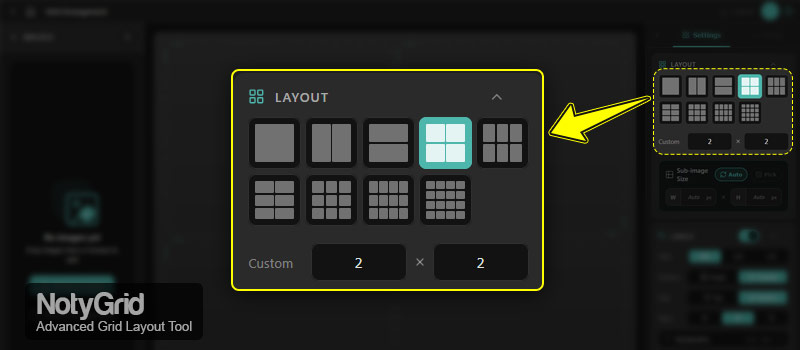
The NotyGrid Layout Settings panel is where you define your grid structure using preset layouts or custom row and column values.
What it does
It allows you to instantly switch between predefined grid layouts or manually control the number of rows and columns to match your exact needs.
How to use
- Open the Layout Settings panel.
- Select a preset layout (e.g., 2×2, 3×3) to apply it instantly.
- Use the Rows (R) input to set custom rows.
- Use the Columns (C) input to define grid width.
- Adjust values to fit your layout goal (recommended range: 1–10).
How it behaves
- Selecting a preset updates the grid immediately.
- Custom inputs override preset configurations in real-time.
- The active layout is visually highlighted.
- All changes are reflected instantly in the grid preview.
Use cases
- Create multi-panel figures with NotyGrid for scientific publications
- Build before/after comparison layouts
- Design structured presentation slides
- Generate consistent image grids for reports
This section covers NotyGrid grid presets and custom rows and columns, giving you full control over your layout structure.
How to Control Sub-image Size in NotyGrid Layout Settings
What it is
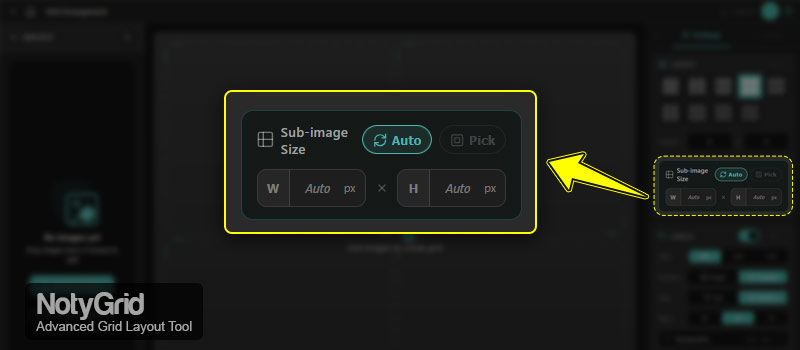
The Sub-image Size panel lets you control the dimensions of each grid cell using Auto mode, manual inputs, or a smart size picker.
What it does
It ensures consistent image sizing across your grid, improving readability and visual balance for professional outputs.
How to use
- Open the Sub-image Size section inside Layout.
- Click Auto to enable automatic sizing instantly.
- Enter Width (W) and Height (H) in pixels for manual control.
- Click Pick to copy dimensions from an existing image.
- Adjust values until the layout looks balanced and clean.
How it behaves
- Auto mode calculates dimensions automatically.
- Manual inputs override Auto settings immediately.
- The Pick option is enabled only when an image is loaded.
- All adjustments update the layout in real-time.
Use cases
- Standardize image sizes for journal submissions
- Match dimensions across product grids
- Maintain visual consistency in presentations
- Quickly reuse a calibrated image size
You can switch between Auto vs manual sub-image size depending on your layout needs, giving you flexibility between speed and precision.
Conditional Behavior in NotyGrid Layout Settings
- When the Layout Settings panel is collapsed → all layout controls are hidden
- When Auto mode is enabled → sub-image size is calculated automatically
- When manual W/H values are entered → Auto mode is overridden
- When no image is loaded → the Pick tool is disabled
- All layout and size changes update instantly in real-time
NotyGrid works as a real-time grid layout editor for scientific images, making it easy to build precise and consistent visual structures.
Why Use the Labels Module?
- Improves grid item discoverability and professional readability.
- Enables precise numbering for exports or printed layouts.
- Offers flexibility between internal and external placement.
- Maintains UI consistency across multiple layouts.
- Reduces post‑editing in graphic workflows.