Documentation
NotyScale Calibration and Pixel Size
Select, verify and change an image calibration before creating a physical scale bar.
- Applies to NotyScale 2.1.0.5
- Updated
Pixel size is not scale bar length
Pixel size is a physical distance per image pixel, such as 0.05 micrometers/px. Scale bar Length is the total physical distance represented by the overlay, such as 10 micrometers. In an isotropic image, bar length in pixels equals the requested physical length divided by the physical distance per pixel. Changing Length selects a different distance to display; changing calibration changes what the image pixels mean.
Worked example with a known reference
Illustrative example: a reliable 20 micrometer reference spans 400 pixels. The pixel size is 20 / 400 = 0.05 micrometers/px. To show a 10 micrometer bar, the original-scale overlay should span 10 / 0.05 = 200 pixels. These numbers explain the calculation; use the actual reference in your own image instead of copying them. A wrong unit or endpoint measurement propagates into every bar based on that calibration.
Read the calibration source row
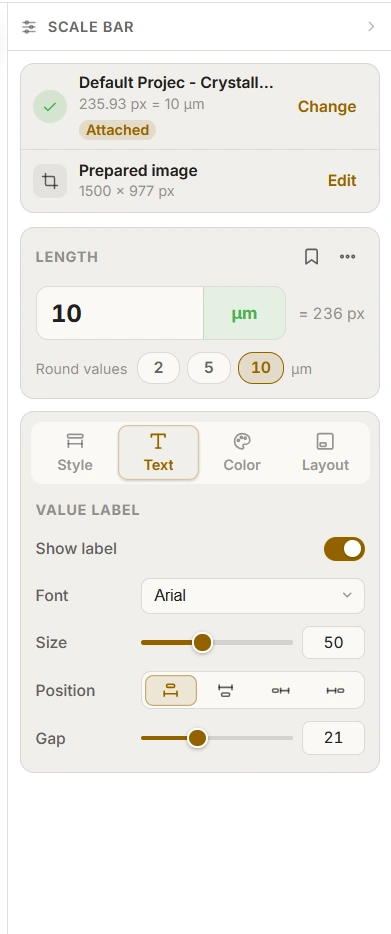
In the right panel, inspect the calibration name and the relationship shown as pixel distance equals physical distance and unit. Attached identifies the calibration associated with the image. Use Calibrate or Change to select the appropriate calibration. A px Length or a not-calibrated warning means the image is not currently using a verified physical scale.
Select and reset an override
- Confirm the active image and inspect its source calibration.
- Open Calibrate or Change and select a saved calibration compatible with the image, or establish one through NotyCalibration using a trusted reference.
- Verify the reference distance, endpoints and unit before relying on the bar.
- If you selected an override unintentionally, use the reset control to return to the attached calibration when one exists, or to automatic selection otherwise.
Review pixel-size suggestions
When a pixel-size card appears, inspect its proposed values and units. Use its edit controls if the metadata interpretation needs correction, or choose manual calibration if the suggestion cannot be verified. The card can expose X and Y pixel-size values; if they differ, investigate the acquisition geometry and the application behavior before treating the image as having one interchangeable pixel scale.
Distinguish cropping from resampling
Cropping an image without resizing the remaining pixels changes the visible field but does not change the distance per remaining pixel. Halving the number of pixels across the same physical field doubles the distance per pixel. In the worked example, resampling by one-half would change 0.05 to 0.10 micrometers/px, so the same 10 micrometer bar would then span 100 working pixels. Recalibrate or verify that the transformation has been accounted for.
Keep calibration and label corrections separate
If a known reference disagrees with the bar, correct the calibration or the image transformation history. Editing the label or selecting an attractive round Length cannot repair a wrong pixel-to-distance ratio. For saving and attaching calibrations shared across tools, use the separate NotyCalibration documentation rather than assuming every image can reuse this one.
Continue your work
Questions
Frequently asked questions
What is the difference between pixel size and bar Length?
Pixel size is physical distance per image pixel. Length is the total physical distance represented by the bar. Divide Length by pixel size to calculate the corresponding span in working pixels.
- Documentation NotyScale Right Panel: Complete Settings Reference Understand every section of the NotyScale right panel: calibration, length, presets, Style, Text, Color, Layout and export controls.
- Documentation NotyScale Bar Types and Layout Create a scale bar and configure its type, length, position, direction and ruler divisions.
- Documentation NotyScale Labels, Colors and Contrast Adjust scale bar labels, fonts, colors, backgrounds and contrast for readable microscopy figures.
- Documentation Save and Apply NotyScale Presets Save and load reusable scale bar styles while checking calibration for each image.
- Guide How to Add a Scale Bar to an SEM Image Online Without ImageJ Use the guided NotyScale Workflow to load a SEM image, manually calibrate it, optionally prepare the image, add a publication scale bar, set its length, and open export.