Documentation
NotyScale Documentation: Getting Started
Learn the NotyScale workspace, image import options, guided workflow and session saving.
- Applies to NotyScale 2.1.0.5
- Updated
Start here: choose a path
NotyScale creates calibrated scale bars for scientific images. Use this page as the starting point for the documentation. For a first result, follow the six steps below. For the meaning of a specific control, open the complete right-panel reference. Use the task-specific calibration, preparation, design, preset, export and batch pages when you need to complete one part of the job.
1. Open Tool or Workflow
Tool opens the bar editor directly. Workflow organizes the task into Import, Calibrate and Scale & Export. Both modes share the working image, calibration, preparation result and bar state. Use Workflow for a guided first attempt; use Tool when the image and calibration are already established.
2. Load and identify the image
Upload an image or select one from the library. The image menu also offers a live camera source where available. Confirm that the intended image is active. Keep the unmodified acquisition file, especially when its footer contains the only reliable physical reference.
3. Confirm the calibration
Read the source row in the right panel. A calibrated image displays its reference distance and unit; an Attached badge identifies an image-associated calibration. Use Calibrate or Change to establish the correct pixel-to-distance relationship. If Length uses px, a physical distance has not been established. The calibration article explains a worked example and pixel-size suggestions.
4. Prepare the field if needed
Open Prepare from the image source row for Crop or Erase. Review the pending result before Apply; Undo and Redo affect preparation operations. Return to the scale editor to inspect the prepared field. Use the preparation article for exact crop coordinates and microscope-footer handling.
5. Create and style the bar
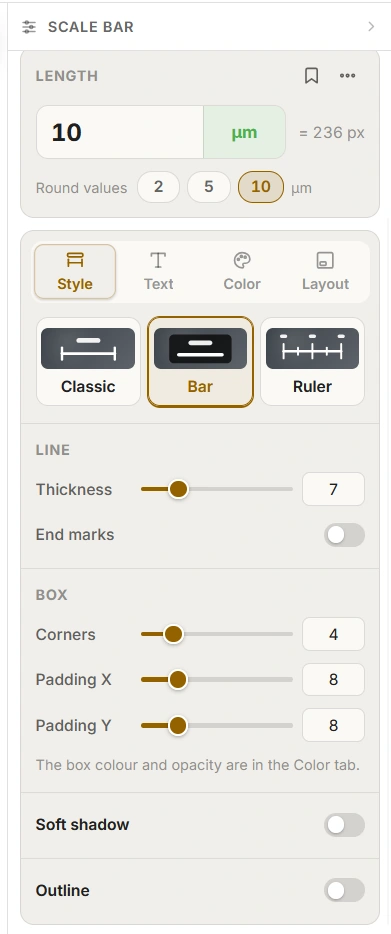
Choose Add Scale Bar, then set Length above the tabs. Use Style for type, thickness, ticks and box effects; Text for the single value or graded labels; Color for themes and contrast; Layout for orientation and position. The complete reference lists every control and its display conditions. Use the design and label articles for concrete configurations.
6. Export or save work in progress
Choose Export Image to set format, dimensions, DPI and filename, then download or save a supported raster output to the library. Use the image menu Save to library action when the intention is to resume an image session. Use the pre-publication checklist after placing the final export in your manuscript.
Continue by task
Calibration explains scale and pixel size. Image Preparation covers crop and cleanup. Bar Types and Layout helps choose a bar and placement; Labels and Colors focuses on appearance. Presets explains reuse, Export explains delivery settings, and Batch covers multiple images. Troubleshooting provides symptom-based diagnostic steps. The links below lead to those pages without relying on publication order in the archive.
Continue your work
- Complete right-panel settings reference
- NotyScale Calibration and Pixel Size
- Prepare and Crop Images in NotyScale
- NotyScale Bar Types and Layout
- NotyScale Labels, Colors and Contrast
- Save and Apply NotyScale Presets
- Export a Scale Bar Image from NotyScale
- Batch Scale Bars in NotyScale
- NotyScale Troubleshooting and Common Questions
- Explore the NotyScale tool
- Follow the scale bar workflow
- Microscopy scale bar pre-publication checklist
Questions
Frequently asked questions
Which documentation page explains every sidebar control?
Use the NotyScale Right Panel Settings Reference for all Style, Text, Color and Layout controls. Getting Started gives the first-result sequence.
- Documentation NotyScale Right Panel: Complete Settings Reference Understand every section of the NotyScale right panel: calibration, length, presets, Style, Text, Color, Layout and export controls.
- Documentation Batch Scale Bars in NotyScale Prepare multiple images, verify their calibrations and review batch scale bar outputs.
- Documentation NotyScale Troubleshooting and Common Questions Resolve common problems with calibration, image preparation, scale bars and export.
- Documentation NotyScale Calibration and Pixel Size Select, verify and change an image calibration before creating a physical scale bar.
- Guide How to Add a Scale Bar to an SEM Image Online Without ImageJ Use the guided NotyScale Workflow to load a SEM image, manually calibrate it, optionally prepare the image, add a publication scale bar, set its length, and open export.